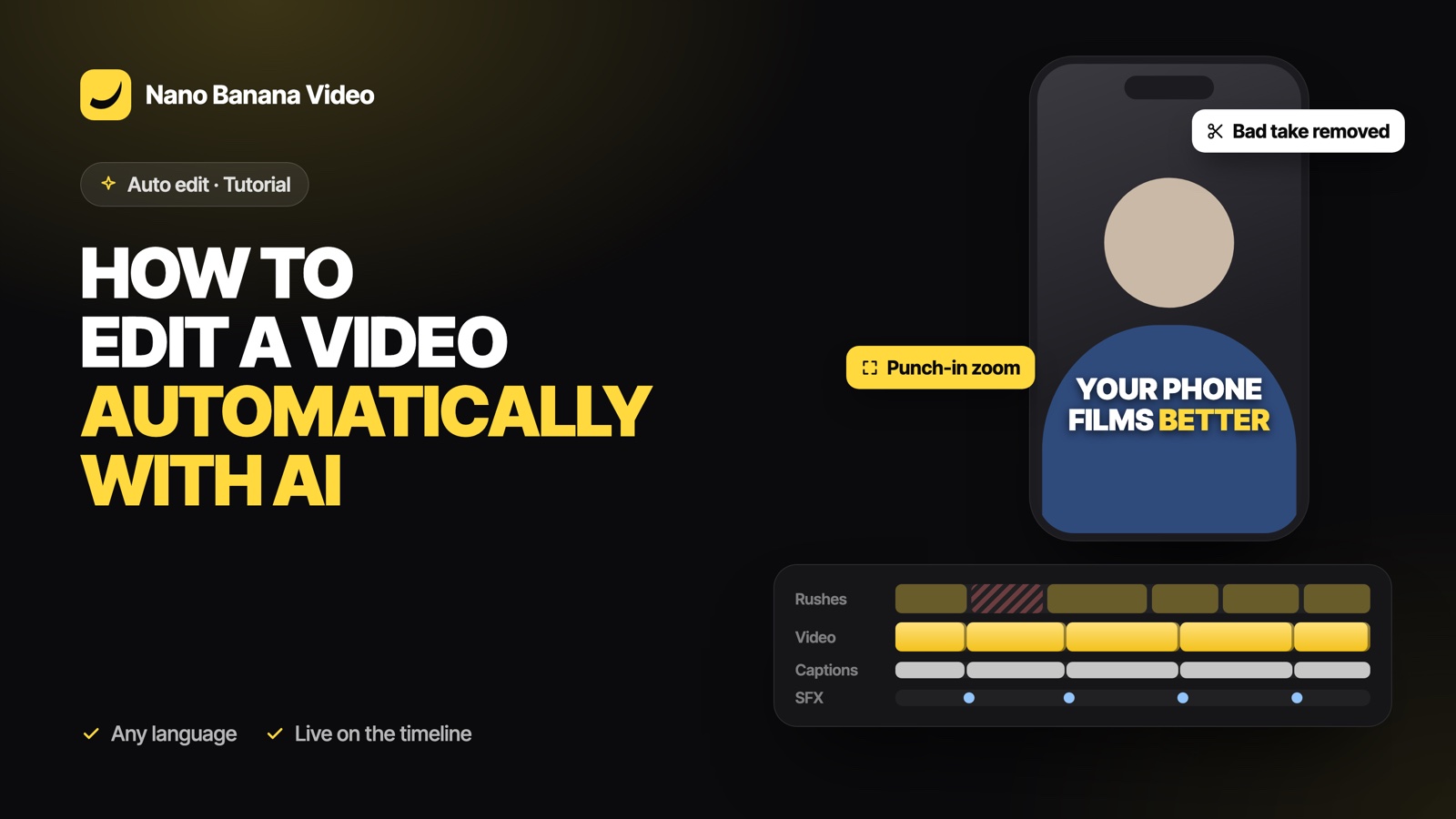
Short answer: to edit a video automatically with AI, drop your raw clips into an AI editor that understands speech, choose the format and the length you want, and let it build the timeline: story order, best takes, silences and mistakes removed, captions and effects added. In Nano Banana Video Studio this is Auto edit: Claude Sonnet 5.5 edits from a word-level transcript of your rushes, in any of 99 languages, and you watch every cut land on the timeline.
What “automatic video editing” really means
Many tools call themselves automatic because they remove silences. That is useful, but it is not editing. An editor watches all the footage, decides what the video is about, puts the best moments in order and throws away the rest. An automatic editor has to do the same work:
- Order: rushes rarely come in the right order. The hook you filmed last often belongs first.
- Selection: when you said the same sentence three times, only the best take should stay.
- Cleaning: false starts, “is it recording?”, setup talk, long hesitations and filler words go.
- Finishing: captions, a few zooms, b-roll over the talking parts, light sound design.
Auto edit does all four, then gives you a normal timeline that you can still change.
Before you start: what footage works best
Auto edit edits from what is said, so it shines on footage with speech: talking-head tips, vlogs, tutorials, UGC ads, interviews and podcasts. You can mix several clips, phones and languages. A few habits help:
- Keep the camera rolling between takes; the AI will find the good one.
- Film a few silent shots of what you talk about (the product, the place, your hands). They become b-roll.
- Use a microphone close to you if you can. Clean sound gives a cleaner transcript, and a cleaner transcript gives better cuts.
Step 1: drop your rushes
Open Video Studio, choose the Auto edit tab and drop your clips, or a whole folder from your phone or camera. It takes up to 60 rushes in MP4, MOV, M4V, WebM or MKV. 4K is fine.
The heavy work happens in your browser on your own files: it decodes the sound, finds the silences, samples frames into one contact sheet per rush and encodes a light mono audio track for the transcription. Your full rushes are not uploaded first. The clips you use end up in Media / Assets, in a folder named after the one you dropped.
Step 2: choose the format and the length
| Format | Frame | Target lengths |
|---|---|---|
| TikTok, Reels, Shorts | 9:16, 1080 × 1920 | 15 s, 30 s, 60 s, 90 s |
| YouTube | 16:9, 1920 × 1080 | 1, 3, 5 or 10 min |
The length is a target, not a stopwatch: the AI aims for 90 to 110 % of it. Then pick the finishing touches: captions, zooms, b-roll and sound effects are on by default, music is off. The optional note is the best place to brief the editor like a person: “keep the joke about the cat”, “end on the price”, “this is for beginners”.
Step 3: watch the AI edit
Press Edit. Each rush is transcribed by ElevenLabs Scribe with a timestamp on every word, and the language is detected on its own. Claude Sonnet 5.5 then receives the transcript, sentence by sentence, with the contact sheets, and writes the edit as a stream of decisions: a plan, the rushes it skips and why, each clip in order, the b-roll, the zooms, the sound effects.
Every decision is applied to the timeline the moment it arrives. You see clips appear one after another, with a short reason under each one (“best of three takes”, “false start, said again in rush 3”).
Step 4: review, adjust, export
The result is not a flattened video. Every cut is a clip, every caption a text layer, every sound effect an audio clip. You can:
- drag a clip to change the order, or trim it by a few frames;
- rewrite a caption or delete a zoom;
- right-click a shot to relight it;
- ask the AI for a change in plain words.
When it looks right, export an MP4 in 1080p. Paid plans export without watermark and include commercial rights.
What the AI will not do
- Cut inside a sentence. Kept pieces start and end on sentence boundaries. Inside them, only pauses and fillers (“um”, “uh”, “euh”) are removed.
- Pad the video. If your rushes contain less usable speech than the target, it keeps every good sentence and tells you how long the video can be, instead of adding retakes.
- Post for you. Nano Banana edits and exports; you publish.
Auto edit is part of every paid Nano Banana plan, from €19.99/mo with 1,000 credits; an edit uses 10 credits and is only charged when it is delivered. Create your account and drop your first folder of rushes.
Frequently asked questions
Can AI edit a whole video automatically?
Yes. In Nano Banana Video Studio, Auto edit transcribes your rushes, then Claude Sonnet 5.5 chooses the story order and the best takes, removes silences, fillers and mistakes on sentence boundaries, and adds captions, zooms, b-roll and sound effects. The result is an editable timeline.
How long does an automatic edit take?
It depends on the amount of footage: each rush is analysed in your browser and transcribed, then the edit is written. You watch the clips land on the timeline while Claude writes it, instead of waiting for a render.
Does it work in languages other than English?
Yes. Transcription covers 99 languages and detects the language of each rush. Captions use the language that is spoken.
Can I change the edit afterwards?
Yes. Every cut, caption, zoom and sound effect is a normal layer on the Video Studio timeline that you can move, trim or delete before exporting.
How much does it cost?
An automatic edit uses 10 credits, charged only once it is delivered. Plans start at €19.99/mo with 1,000 credits; Pro at €39.99/mo has no credit limit.